How to Install MATLAB, Mathematica, Java, C/C++, and R Language Kernels in Jupyter Notebook
Tutorial ·
Reading in English
How to Write MATLAB in Jupyter
MATLAB Engine API for Jupyter
This only lets Python call MATLAB functions — it doesn’t mean you can actually run MATLAB itself. The original article used Python 3.11.7; it’s recommended to install the required package inside a virtual environment.
python -m pip install matlabengine
Then you can call MATLAB functions:
import matlab.engine
eng = matlab.engine.start_matlab()

eng.isprime(37)  # test case
True
If all goes well, it should print True.
jupyter-matlab-proxy
Install it in a virtual environment
python -m pip install jupyter-matlab-proxy
Start jupyter notebook from the terminal, which opens a browser tab; create a new .ipynb notebook file. The first time, it will ask you to verify your license.
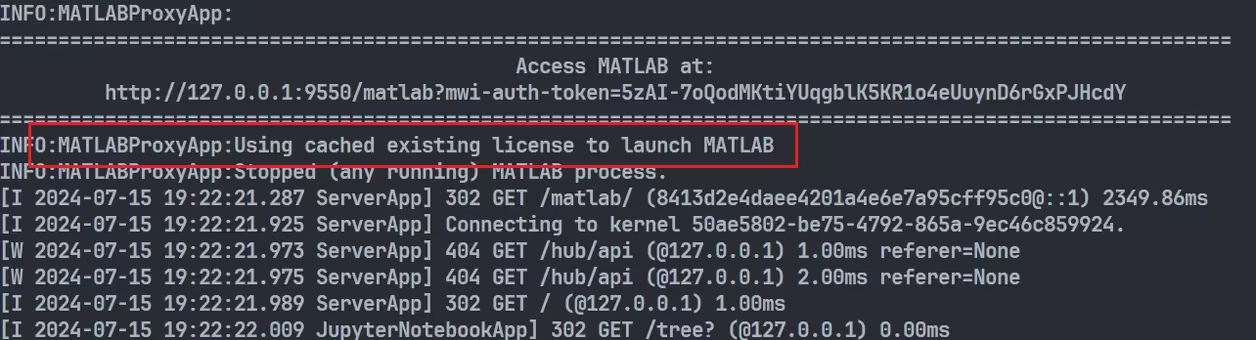
Now it’s ready to use.
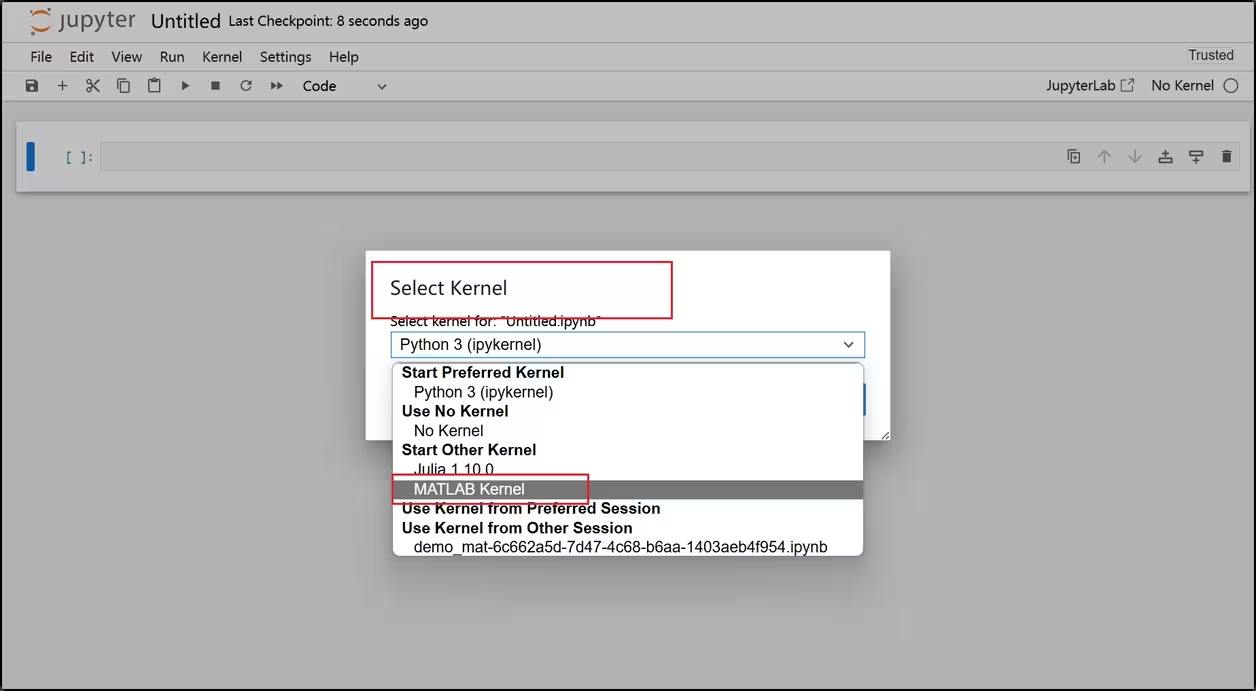
In VS Code, you can connect to the local server so you can use the proxy from within VS Code too. This extra step is needed because the package currently only supports the browser version of Jupyter, so after opening the browser you have to connect it to the local server.
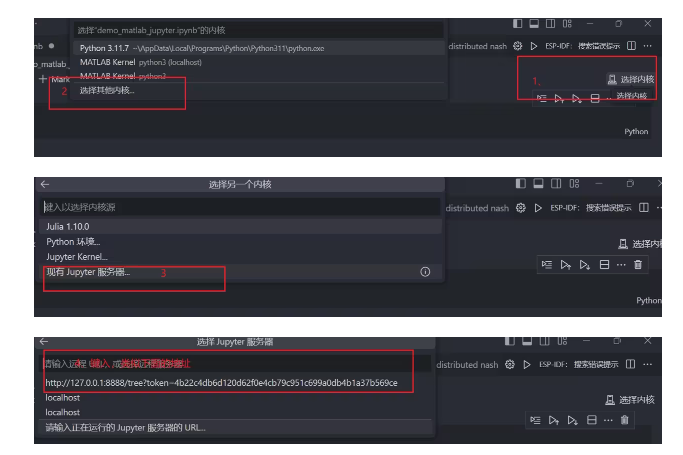
This address is shown in your terminal.
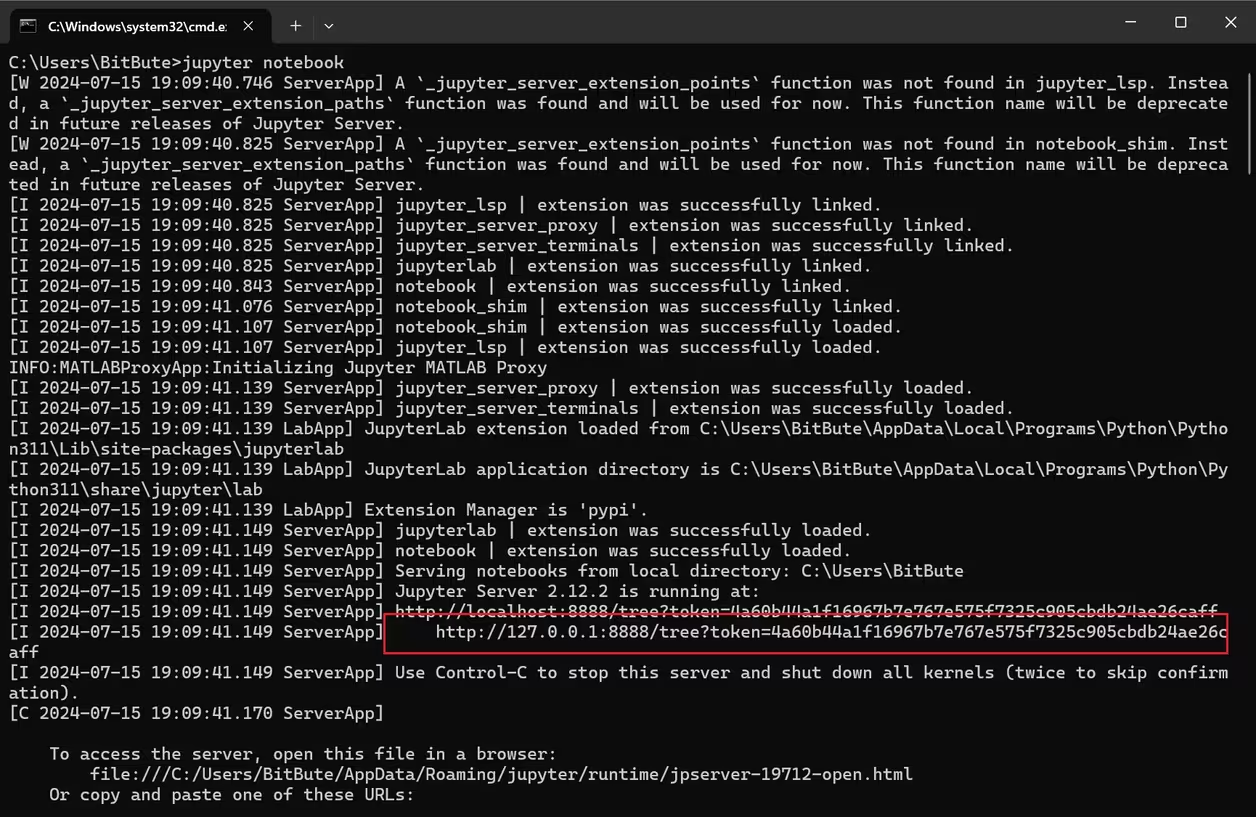
matlab_kernel
MATLAB also seems to offer a ready-made Jupyter kernel. Inside the virtual environment:
pip install matlab_kernel
python -m matlab_kernel install
Here, you need not just the kernel but also the MATLAB engine.
cd /usr/local/MATLAB/extern/engines/python
python setup.py install
This Python script appears to be something MATLAB has already prepared in advance.
How to Make Mathematica Interact with Jupyter
The WolframLanguageForJupyter Package
Wolfram Research provides this package; download it with the following command
git clone https://github.com/WolframResearch/WolframLanguageForJupyter.git
Once it’s downloaded, run the installation script Wolfram provides:
cd WolframLanguageForJupyter
./configure-jupyter.wls add
A quick note here: configure-jupyter.wls is a Wolfram Language script that configures the connection between Jupyter notebook and the Wolfram Language; the add command tells it to add a kernel to Jupyter.
Configuring the Mathematica Path
In Mathematica, manually load the package using its full path:
Needs["WolframLanguageForJupyter`", </your/path/to/WolframLanguageForJupyter/WolframLanguageForJupyter.m>]
The WolframLanguageForJupyter.m file is in the repository you just downloaded. If all goes well, after doing the above you should find a usable kernel in Jupyter.
If it still doesn’t work, run this in Mathematica as well:
Needs["WolframLanguageForJupyter`"]
InstallWolframLanguageForJupyter[]
Arsenal Showcase
Running Mathematica — unfortunately the interactivity isn’t great. 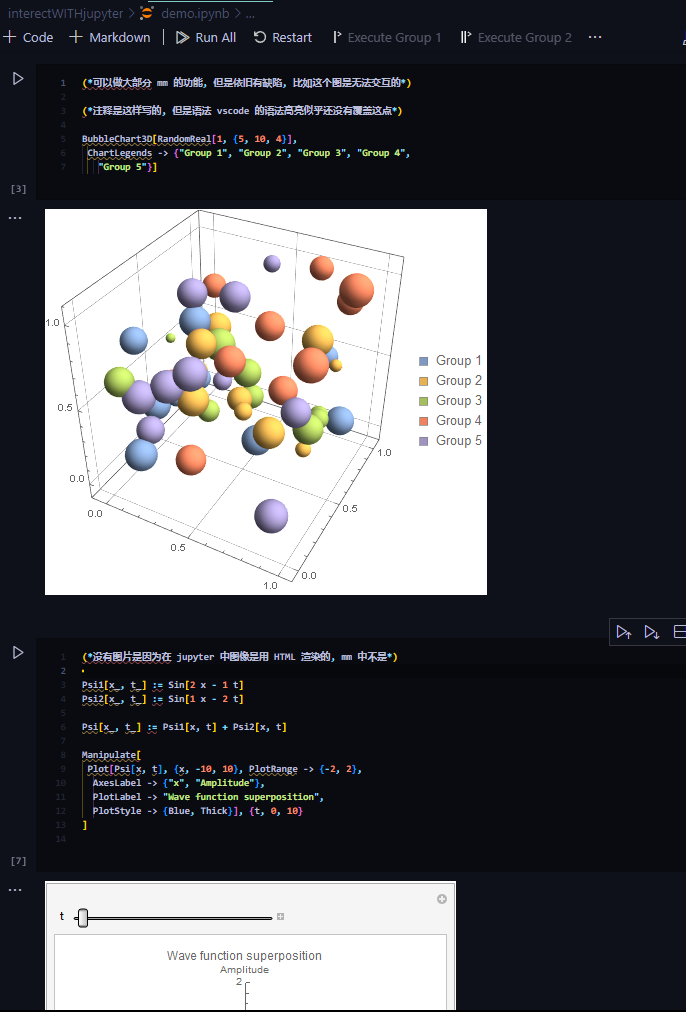
Running multiple programming languages, and once you’re done you can even export to PDF — truly the single greatest goddamn programming language on the face of the earth. 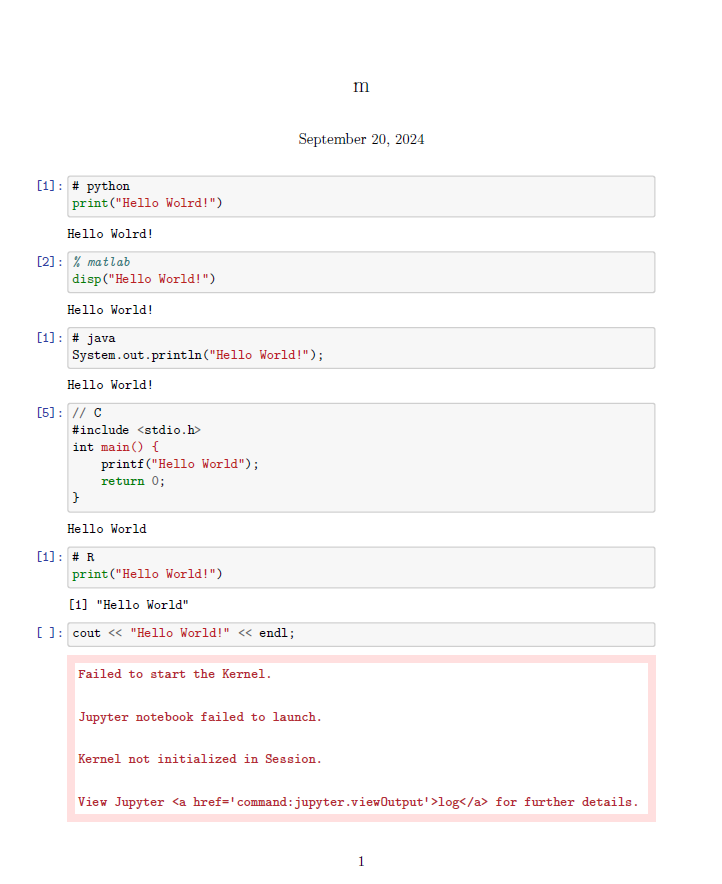
Here, I really couldn’t get a C++ environment configured. Currently the only (interpreted) C++ Jupyter kernel seems to be xeus-cling, which only supports macOS and Linux. I happened to have a Mac M2 on hand, so I gave it a shot — and failed.
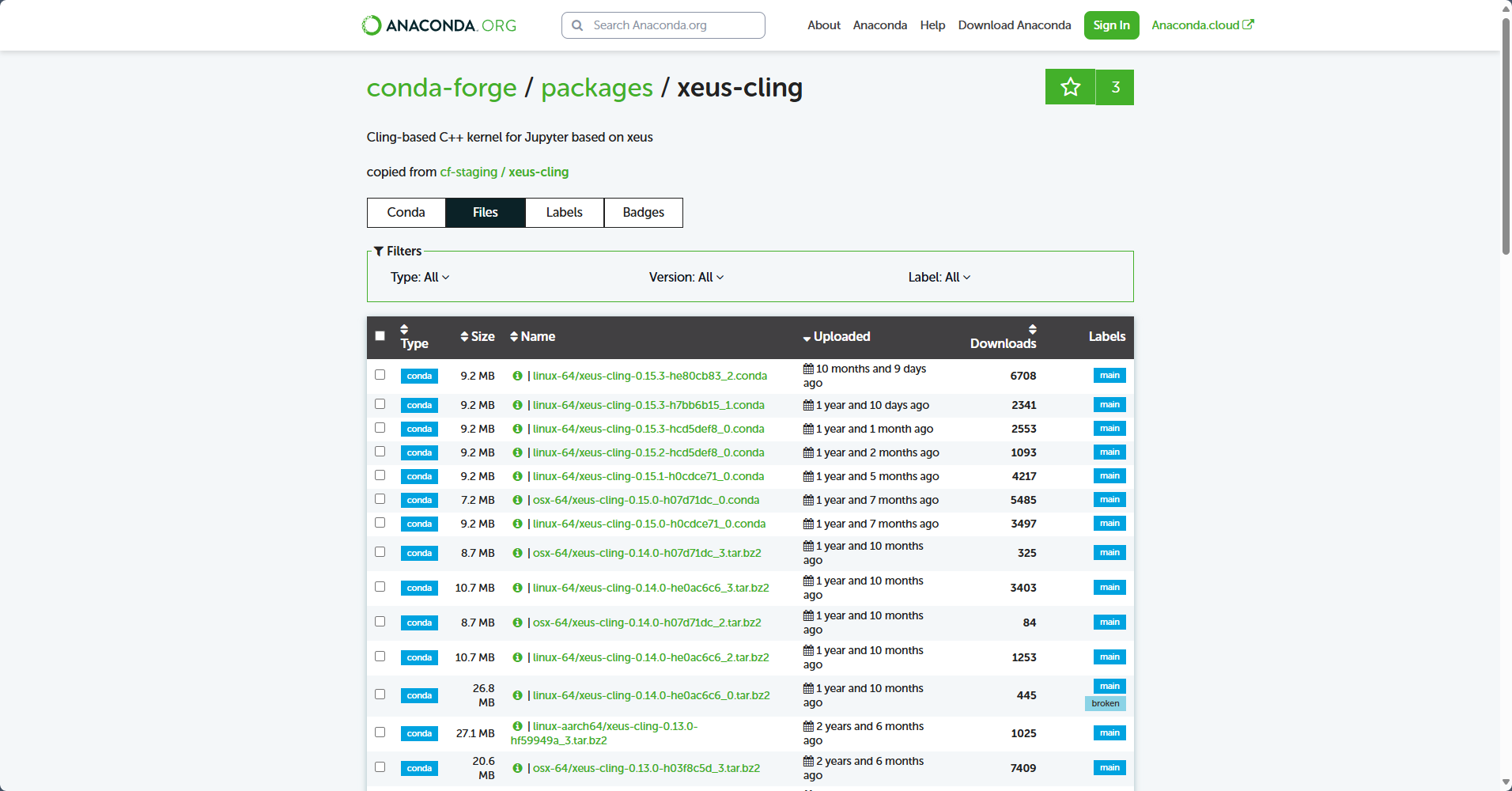
This is the list of available packages for xeus-cling on anaconda.org. Notice that macOS support here is limited strictly to osx-64, not osx-arm64. But — but! — the M2 chip is part of Apple’s Apple Silicon lineup, which uses the ARM architecture, so it isn’t supported! I then tried Apple’s Rosetta 2 translator, which translates ARM machine code into x86-64 machine code. But, but, when downloading LLVM (“Low Level Virtual Machine”) via bash on the Mac, it always insisted on grabbing the ARM-architecture build, so Rosetta 2 couldn’t find an x86_64 build of LLVM, and in the end it was a failure.
Another viable option is the well-known WSL (Windows Subsystem for Linux) — Intel’s entire chip lineup happens to use the x86-64 architecture, and there are relevant write-ups to be found online. I’ll give it a try another time.
中文阅读
如何在 jupyter 中写 matlab
matlab engine api for jupyter
仅仅是 python 可以调用 matlab 的函数, 并不是可以运行 matlab. 原文章的 python 版本为 3.11.7, 建议在虚拟环境中安装需要的包
python -m pip install matlabengine
然后可以调用 matlab 的函数了
import matlab.engine
eng = matlab.engine.start_matlab()

eng.isprime(37) # 测试用例
True
不出意外的话打印一个 True.
jupyter-matlab-proxy 代理
虚拟环境安装
python -m pip install jupyter-matlab-proxy
终端命令启动 jupyter notebook, 跳转浏览器, 新建一个 .ipynb 的笔记本文件, 第一次会验证 license.
可以用了
在 vscode 中, 可以连接本地的服务器, 这样就可以在 vscode 中用代理了, 多此一举的原因是这个包目前只支持浏览器的 jupyter, 所以开浏览器后要接入本地服务器.
这个地址在你的终端里显示
matlab_kernel
matlab 似乎也准备了成型的 jupyter 内核, 在虚拟环境中
pip install matlab_kernel
python -m matlab_kernel install
此处, 不仅需要内核, 还需要 matlab 引擎.
cd /usr/local/MATLAB/extern/engines/python
python setup.py install
这个 python 脚本似乎就是 matlab 早就准备好的.
如何使得 mm 可以与 jupyter 交互
WolframLanguageForJupyter 包
Wolfram Research 提供了这个包, 使用以下命令下载
git clone https://github.com/WolframResearch/WolframLanguageForJupyter.git
安装完成后, 运行 Wolfram 提供给我们的安装脚本
cd WolframLanguageForJupyter
./configure-jupyter.wls add
这里说明一下, configure-jupyter.wls 是 Wolfram 语言的脚本文件, 用于配置 jupyter notebook 与 Wolfram Language 之间的连接, add 命令表示向 jupyter 添加一个内核.
配置 Mathematica 路径
在 Mathematica 中, 手动加载包的完整路径
Needs["WolframLanguageForJupyter`", </your/path/to/WolframLanguageForJupyter/WolframLanguageForJupyter.m>]
WolframLanguageForJupyter.m 文件在刚下载的仓库里. 不出意外的话完成以上后可以在 jupyter 中找到可以用的内核.
如果还是不行就在 Mathematica 里面再运行一下
Needs["WolframLanguageForJupyter`"]
InstallWolframLanguageForJupyter[]
军火库展示
运行 mm, 可惜交互性不行
运行多门编程语言, 完事了还能导出 pdf, 真他妈是地表最强编程语言
这里, 我实在无法配置 C++ 的环境, 目前 C++ 的 jupyter kernel (解释性)似乎只有 xeus-cling, 只支持 MacOS 和 Linux 系统, 恰好手上有一台 Mac M2, 就捣鼓了起来, 结果没成功
此处是 anaconda.org 上关于 xeus-cling 的可用包, 注意看, 这里对 MacOS 操作系统的支持仅仅局限于 osx-64, 而不是 osx-arm64, 燃鹅燃鹅, M2 芯片属于 Apple Silicon 芯片系列, 采用的是 ARM 架构, 所以并不被支持! 后来我尝试了苹果公司推出的 Rosetta 2 转译器, 这玩意将 arm 架构的机器码转译为 x86-64 架构的机器码, 但是但是苹果电脑的 bash 命令下载 LLVM (“Low Level Virtual Machine”) 时总是指定下载 ARM 架构的, 所以 Rosetta 2 找不到 x86_64 架构的 LLVM, 最终以失败告终.
另外一个可行的方案是众所周知的 WSL, windows 的 linux 子系统, 恰好 intel 全系芯片都采用的是 x86-64 架构,而且网上能搜到相关的文章. 日后再尝试.